
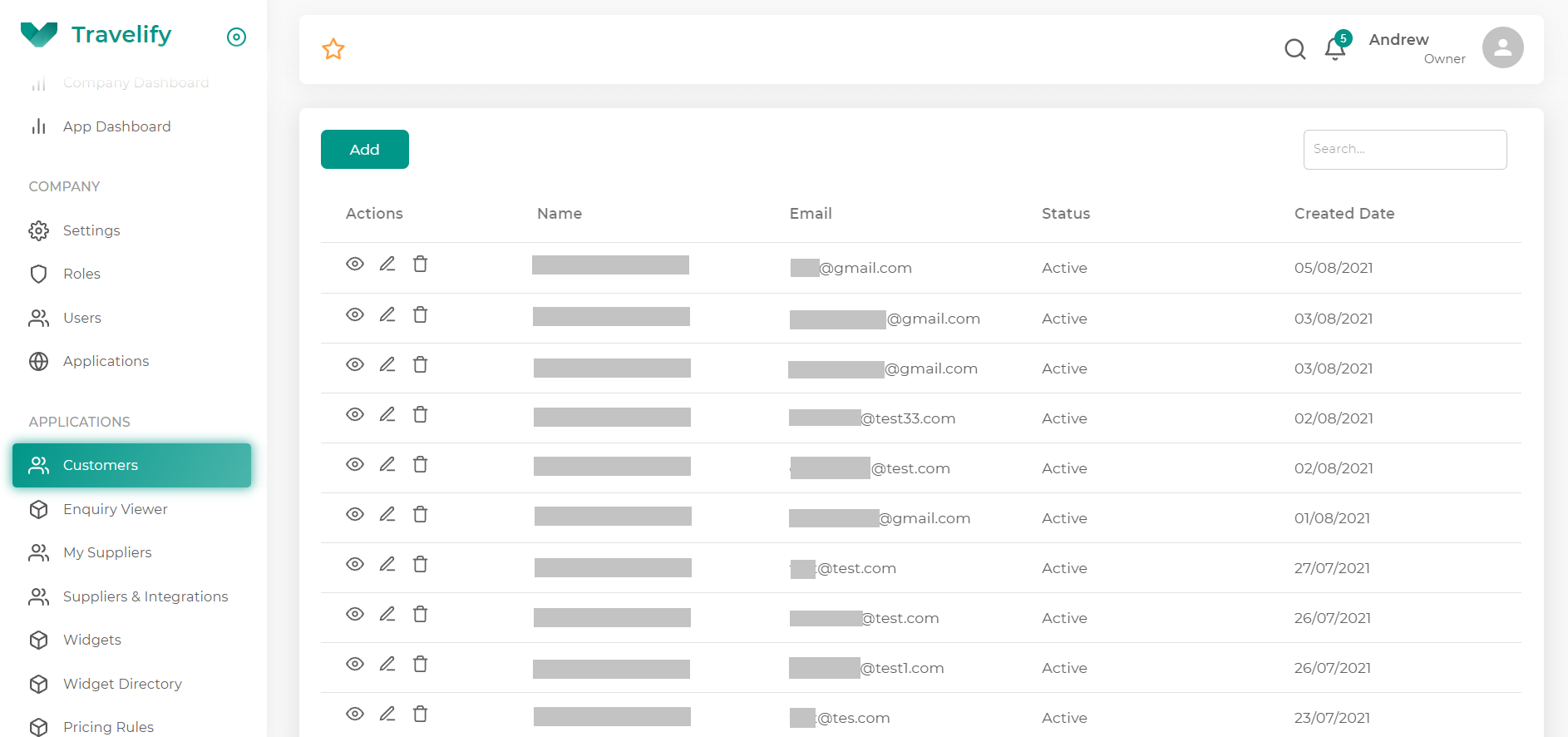
The "Customers" feature within Travelify is a database for all customers that have purchased a product through your application.
It allows you to create, read, update and delete user information in one place.
Just click Customers from the side menu to access this feature.
Customers Dashboard
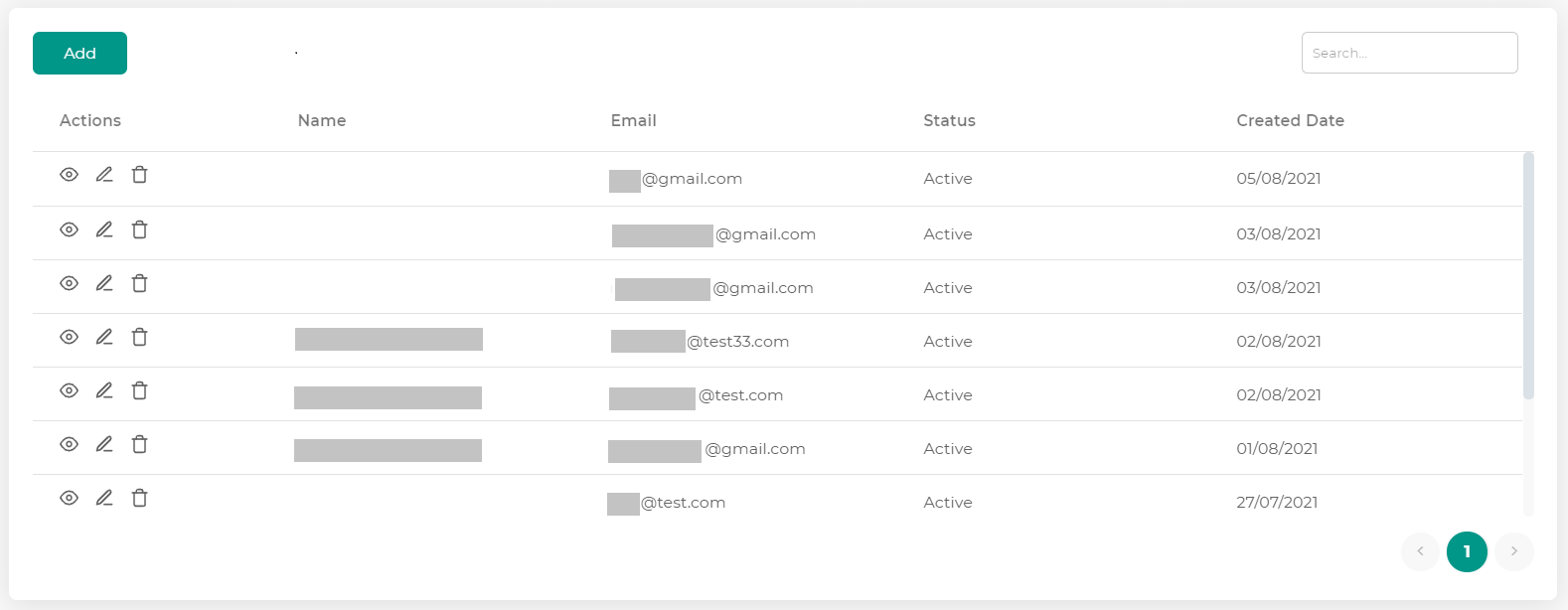
When you click on Customers, you will be presented with a dashboard that lists all of the people that have purchased a product through the system. The dashboard has a variety of features:
- Add Button - The ability to manually create a new customer in the database
- Actions
- Eye icon - View customer details
- Pencil icon - Edit customer details
- Trash icon - Delete customer details
- Name - The name of the customer
- Email - The email of the customer
- Status - TBC
- Created Date - The date the customer was first created in the system
- Search Box - Search for a specific customer
- Pagination - Click through multiple pages of customer data
How to create a new customer
1
From the main Customers dashboard, click the Add button.
2
You will then be presented with the Add Customer page, that lets you input all the details you have for a new customer.
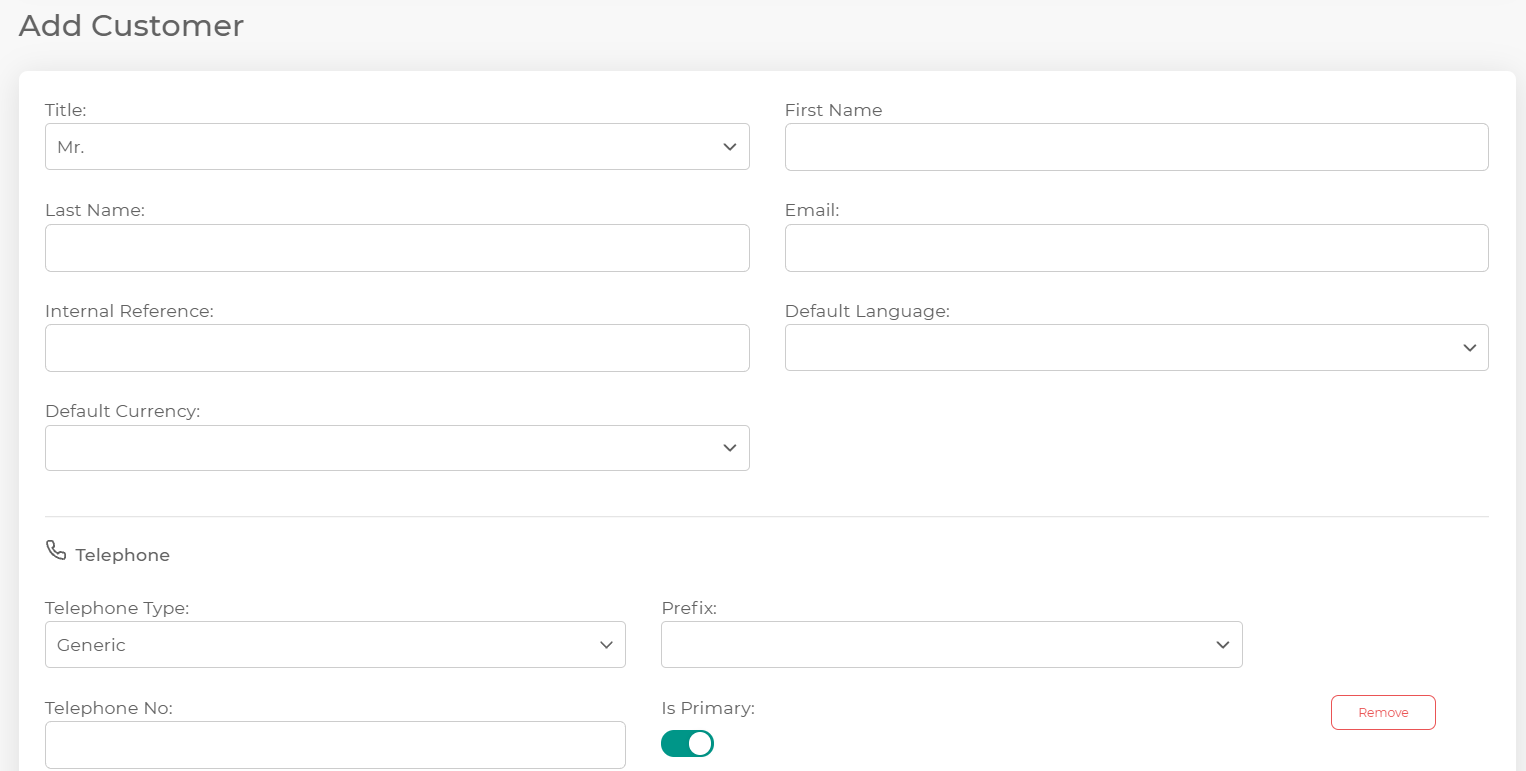
- Title - The title of the customer
- First name - Customers first name
- Last name - Customers last name
- Internal reference - Add a reference code if this relates to your internal processes
- Default language - TBC
- Default currency - TBC
- Telephone
- Telephone type - Allows you input the specific type of phone number this is. Useful if you have multiple numbers for one customer
- Prefix - The international dialling code that applies to this number
- Telephone no - The customers phone number
- Is primary (On/Off) - Select if this or is not the customers primary phone number
- Add Phone - Click this to add a new phone number record for this customer
- Remove - Click this to remove the current phone number record for this customer
- Address
- Address Name - TBC
- Address Company - TBC
- Address Line 1 - The first line of this address
- Address Line 2 - The second line of this address
- City - The city/town for this address
- State - The state/county for this address
- Post Code - The post or Zip code for this address
- Country - The country for this address
- Is primary (On/Off) - Select if this or is not the customers primary address
- Add address - Click this to add another address for this customer
- Remove - Click this to remove the current address for this customer
- Click Save when finished and this will add the details to the Customers database
How to edit an existing customer

1
Locate the existing customer you want to edit by using the search box in the top right hand corner of the dashboard.
2
When you identify the correct customer, from the actions column, select the pencil icon.
3
You will then be presented with the customers details, which you can edit as required.
4
Click Save when finished.
How to delete an existing customer
1
Locate the existing customer you want to delete by using the search box in the top right hand corner of the dashboard.
2
When you identify the correct customer, from the actions column, select the trash icon.
3
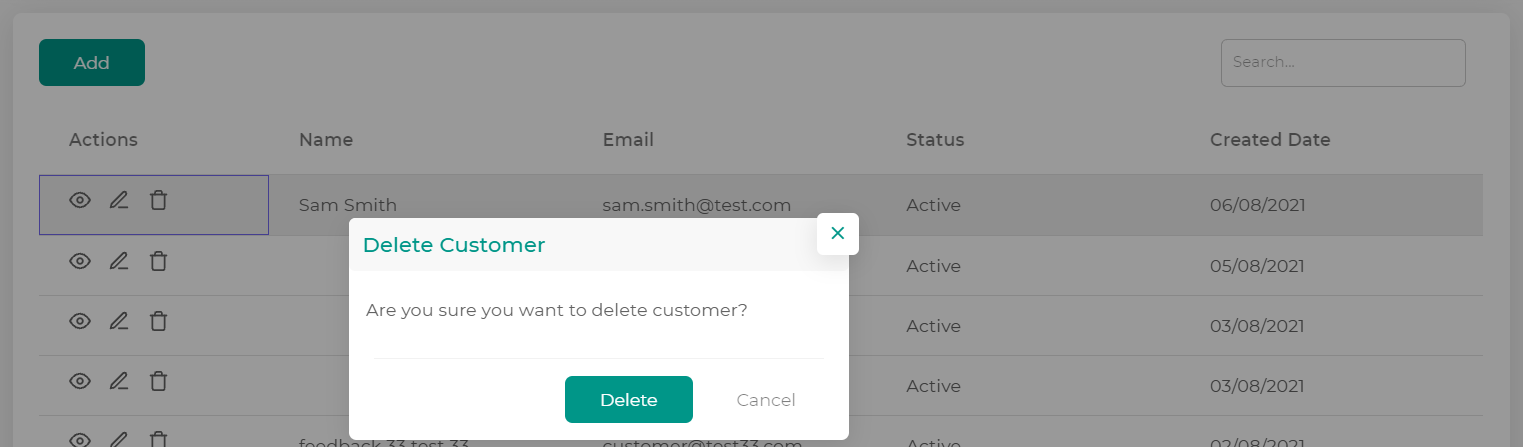
A pop up will appear, asking you if you are sure if you want to delete this customer. Click Delete if you are happy to delete this customer.
4
The customer is now successfully deleted from your Customers database.
Comments
0 comments
Article is closed for comments.